
Can you remove a Discord instance without deleting the original app or account?
Based on the current product workflow, the linked official documentation, and repeatable checks. Account and compatibility results must be verified on your installed versions.
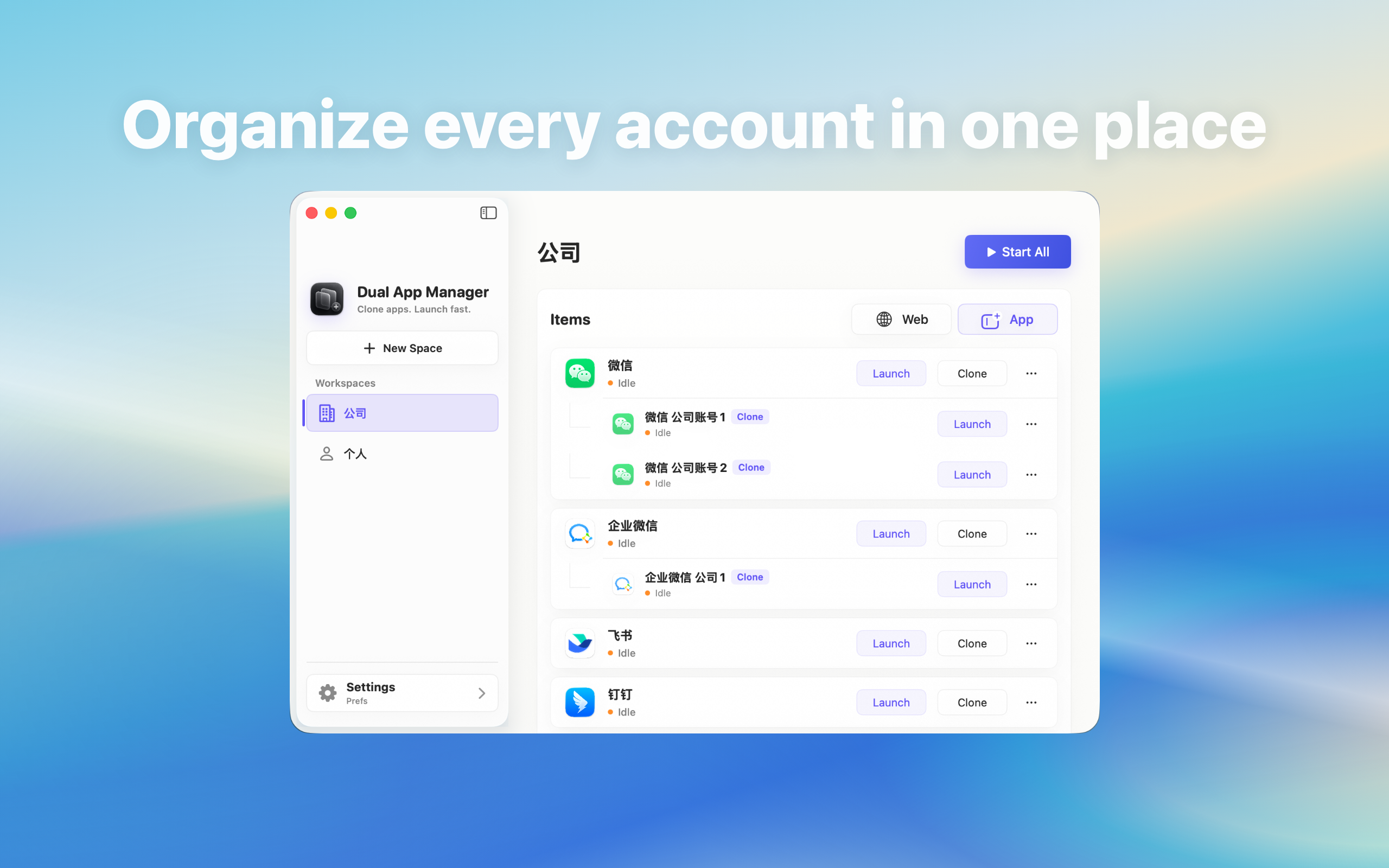
Safely retire a Discord instance after confirming account sessions, required files, the original app, and provider-side access.
Short answer
Removing a local instance should be treated separately from deleting the official Discord application and separately from deleting the provider account. Before removal, verify what the product action targets on the current version. Do not infer from an icon disappearing that provider sessions, cloud data, or downloaded files were also removed.
Identify the three things involved
- Original app: the official Discord installation used as the source and known-good entry.
- Local instance: the additional application entry managed on this Mac.
- Provider account: the identity, cloud data, devices, and security settings controlled by Discord.
A safe cleanup handles each scope deliberately.
Before removing the instance
Open the instance and confirm the account and organisation. Transfer required work through approved systems, finish file uploads, note any local downloads that must be retained, and confirm account recovery. For a company account, check offboarding and retention requirements with the administrator rather than deciding from the Mac alone.
Sign out or revoke the session when policy requires it
If the role is ending, sign out through Discord and use its official device or session controls when available. Removing the local entry is not proof that the server-side session was revoked. For a personal test instance that will be recreated, follow the provider's normal linked-device rules.
Verify the original before and after removal
Open the official Discord app, record its account state, and quit it normally. Remove only the clearly named instance through Dual App Master, then reopen the official app and run a message and file test. If the removal dialog is ambiguous about the target or data, stop and back up required information before confirming.
Final cleanup check
Confirm that the old launch entry and Login Item are gone, the official app still opens, required local files are in the approved location, and provider access matches the intended outcome. Do not reuse an old instance name for a new client or project until the previous account, downloads, and permissions are cleared.