
WhatsApp second account returns to the login screen on Mac
Based on the current product workflow, the linked official documentation, and repeatable checks. Account and compatibility results must be verified on your installed versions.
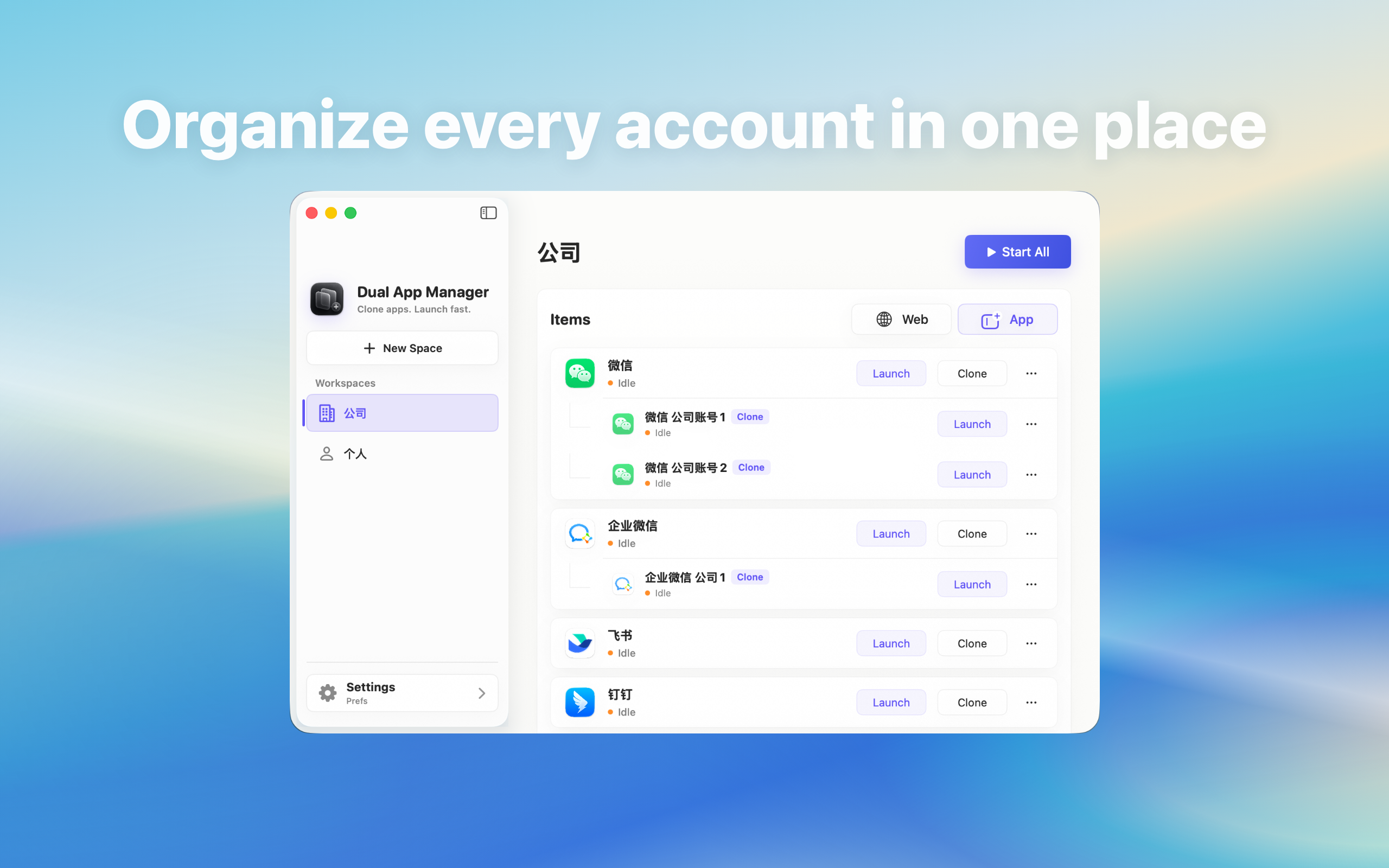
Diagnose a WhatsApp second account that scans or signs in but returns to the Mac login screen, without deleting a working account first.
What this symptom usually means
A login loop is not the same as an instance that cannot launch. The WhatsApp window opens, authentication starts, and the provider then returns the window to sign-in or reports that the account is already active. That points first to provider approval, an existing hidden session, or a session that was not persisted—not to a reason to create more copies. Do not infer Mac support from mobile features; inspect the current Mac client for an actual Add account or Switch account control.
First check for an already-open account
- Quit the login attempt without deleting anything.
- Look in the Dock and menu bar for another running WhatsApp window.
- Use Window or the app's account switcher to reveal hidden sessions.
- Open the official WhatsApp installation directly and confirm which identity is active.
If the requested account is already open, the correct fix is to surface that session, not scan the code again.
Separate provider rejection from local persistence
Write down the exact point of failure: before the phone approves, immediately after approval, after a brief inbox view, or only after quitting and reopening. A refusal before the inbox belongs to WhatsApp's authentication and security flow. A session that works until relaunch is a persistence or instance problem. These cases need different evidence and should not be described simply as “login failed.”
Retest with one clean variable
Update and open the official WhatsApp app first. Quit every WhatsApp process normally, launch only the second entry, and authenticate a non-critical account through the provider's interface. Do not run the original at the same time during this test. If the account stays signed in, introduce the original app next; if it fails before that, save the provider message and use official account support.
Do not use these risky fixes
Do not disable System Integrity Protection, remove account recovery, repeatedly approve unknown devices, or alter application signatures merely to get past a security response. Dual App Master does not control WhatsApp's server-side device approval and cannot promise that an account will remain authorised. A provider challenge must be resolved through the provider.
The pass condition
Quit the second entry, wait one minute, reopen it, and then restart the Mac and test again. The account should either return to its inbox or present an expected official re-authentication step. If it repeatedly returns to login, keep the working official app, record the macOS, WhatsApp, and Dual App Master versions, and stop rebuilding instances until compatibility or account approval is confirmed.