
Microsoft Teams sends duplicate notifications from two accounts on Mac
Based on the current product workflow, the linked official documentation, and repeatable checks. Account and compatibility results must be verified on your installed versions.
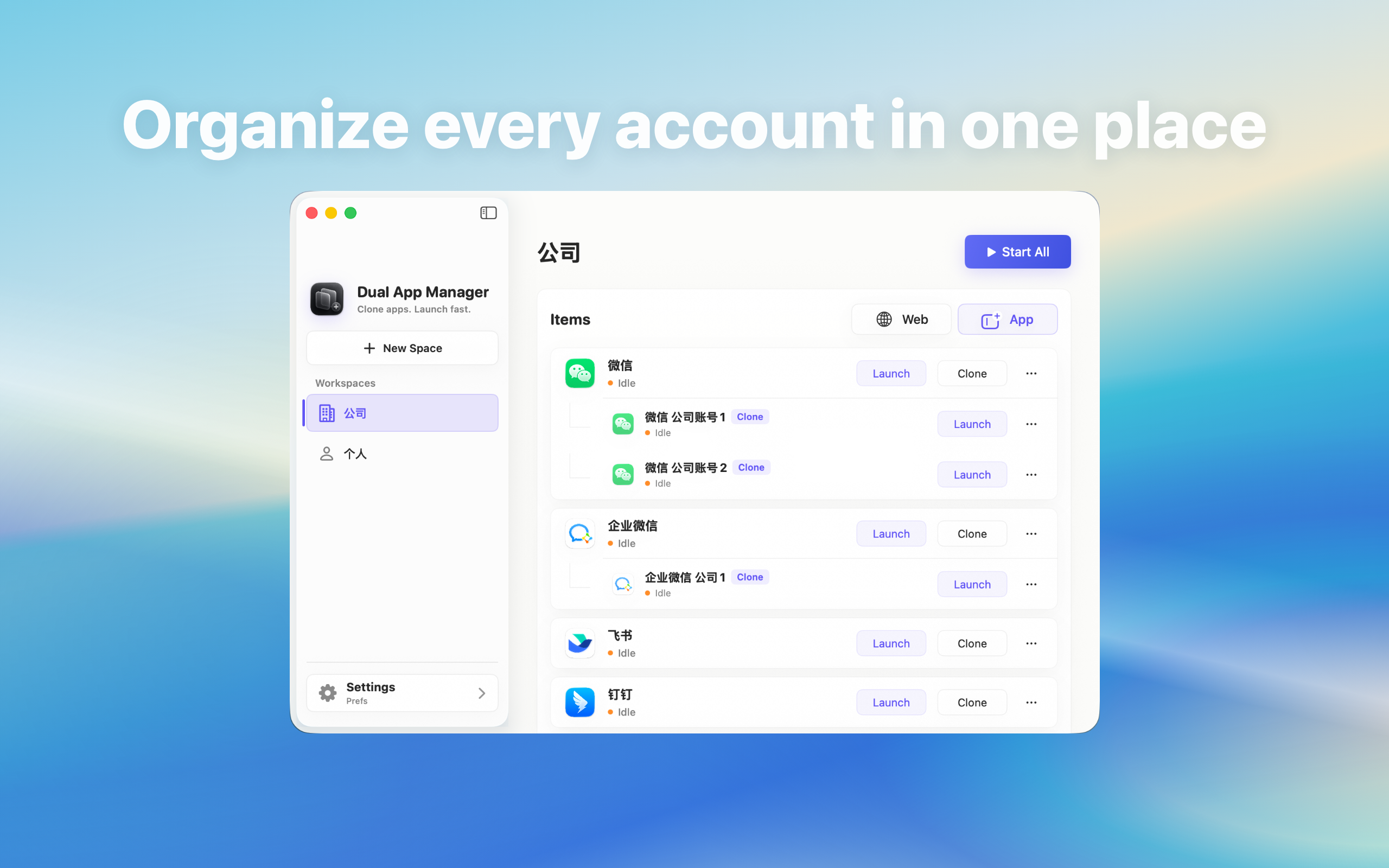
Find out why two Microsoft Teams accounts show duplicate Mac banners or sounds and reduce noise without muting the account that needs attention.
Prove whether the message or only the alert is duplicated
Open both Microsoft Teams identities and send one uniquely worded test message to only one account. Record which inbox receives it, how many banners appear, which badges change, and whether sounds repeat. The same group or contact may exist in both accounts, so matching text alone does not prove that one event was delivered twice.
Build a small notification matrix
- Test a direct message to Account A.
- Test a direct message to Account B.
- Test a group mention in each account.
- Record banner, badge, sound, and click destination.
- Repeat once after reversing launch order.
This shows whether duplication follows an account, event type, or the most recently opened process.
Check three alert layers separately
Compare conversation mute settings, Microsoft Teams's own desktop notification controls, and System Settings → Notifications. Then review Focus modes and any mirrored alerts from a phone or browser session. Change only one layer and repeat the same event. Turning off every notification may hide the symptom while also removing the alert the second account was created to receive.
Give each role a deliberate alert policy
A primary support account may need direct messages, mentions, and calls; a community or project account may need mentions only. Write the rule beside each instance name and test it. If macOS exposes one shared notification source that cannot distinguish instances, keep the urgent identity in the official app and make secondary identities less interruptive.
Verify the click target before declaring success
A single banner is still unsafe if it opens the wrong account. Click each remaining test alert and confirm the visible profile or organisation before replying. For customer, finance, or internal company work, ambiguous routing is a reason to open the named instance manually rather than answering from the banner.
Acceptance criteria
The setup passes when every tested event produces the planned number of alerts, required sounds remain, clicking opens the correct identity, and the result survives restart. If duplicate alerts cannot be attributed or controlled, reduce simultaneously active instances or use Microsoft Teams's built-in switching rather than accepting permanent alert noise.