
Microsoft Teams second instance does not open automatically after Mac login
Based on the current product workflow, the linked official documentation, and repeatable checks. Account and compatibility results must be verified on your installed versions.
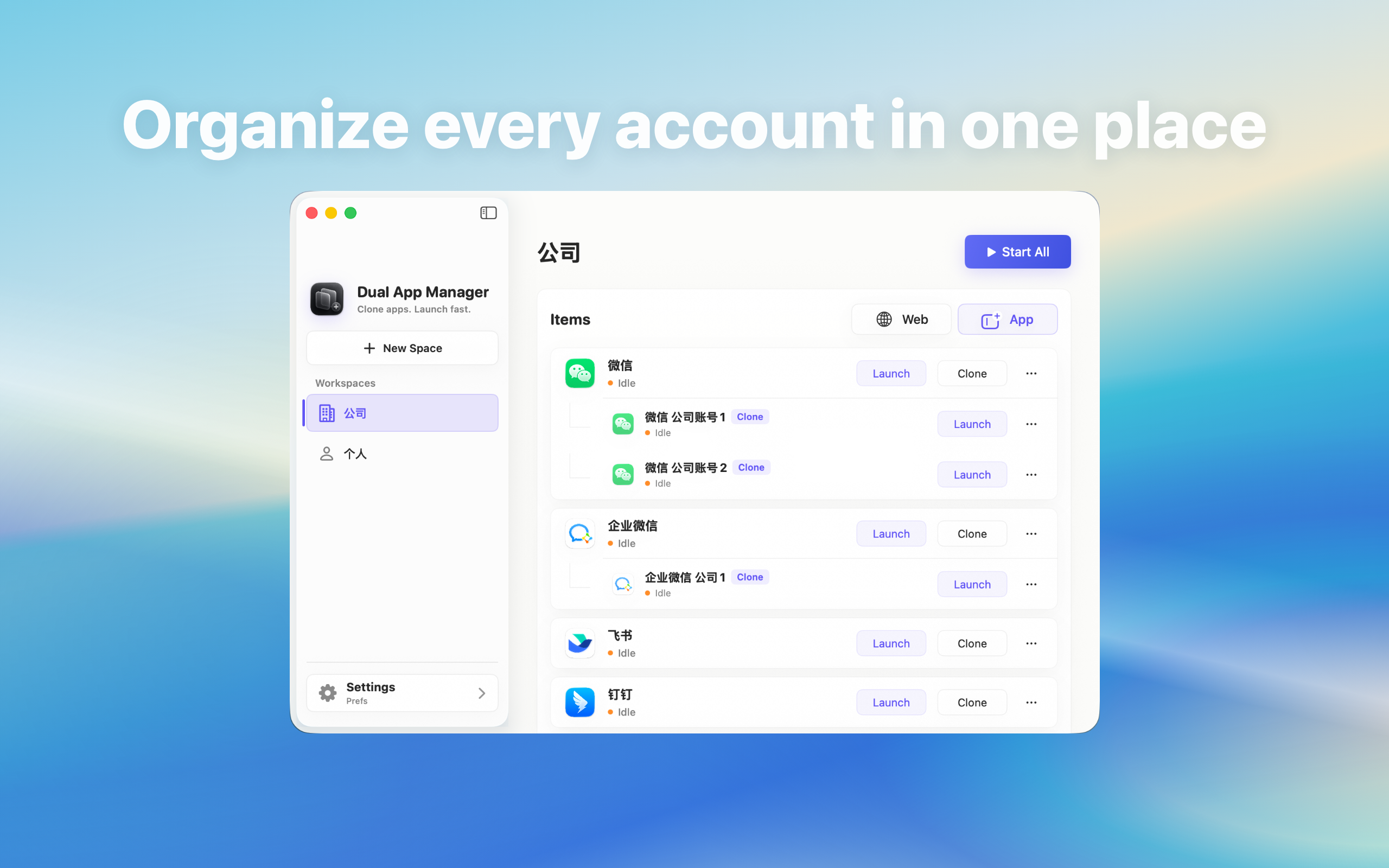
Fix a Microsoft Teams second instance that works manually but does not open after signing in to the Mac.
First prove that manual launch works
Restart the Mac, wait for the desktop to settle, and open the exact named Microsoft Teams instance manually. If it reaches the expected account, authentication is intact and only startup automation needs attention. If it returns to login or fails to open, solve that problem before adding a Login Item.
Add the correct entry to Login Items
- Open System Settings → General → Login Items & Extensions.
- Under Open at Login, add the actual instance application or launch entry—not the original Microsoft Teams app by mistake.
- Remove obsolete or duplicate entries marked with a warning.
- Restart once and observe which account opens.
Avoid launching every account at once
Keep only the role that must be ready immediately as a Login Item. Open lower-priority accounts after the first one connects. Simultaneous startup can make several windows appear offline, delay device approval, or create a burst of notifications that hides which instance failed.
If the wrong account opens
Compare the item name and file location in Login Items with the entry used successfully by hand. Remove the wrong item and add the verified one. Do not switch account identities inside the instance merely to make the startup label look correct; preserve a stable account-to-entry mapping.
If startup works only sometimes
Temporarily remove other Login Items and add them back one at a time, restarting after each change. Apple recommends this isolation method for startup conflicts. Record whether the failure follows Microsoft Teams, follows the number of concurrent entries, or disappears when another helper is removed.
The result to expect
Automatic launch should open the named entry and expose the expected account without making all other instances start. It does not guarantee that provider authentication will be retained forever. If reliable startup is more important than simultaneous windows, the official Microsoft Teams app plus built-in switching may be the simpler choice.