
How to move a Microsoft Teams multi-account workflow to a new Mac safely
Based on the current product workflow, the linked official documentation, and repeatable checks. Account and compatibility results must be verified on your installed versions.
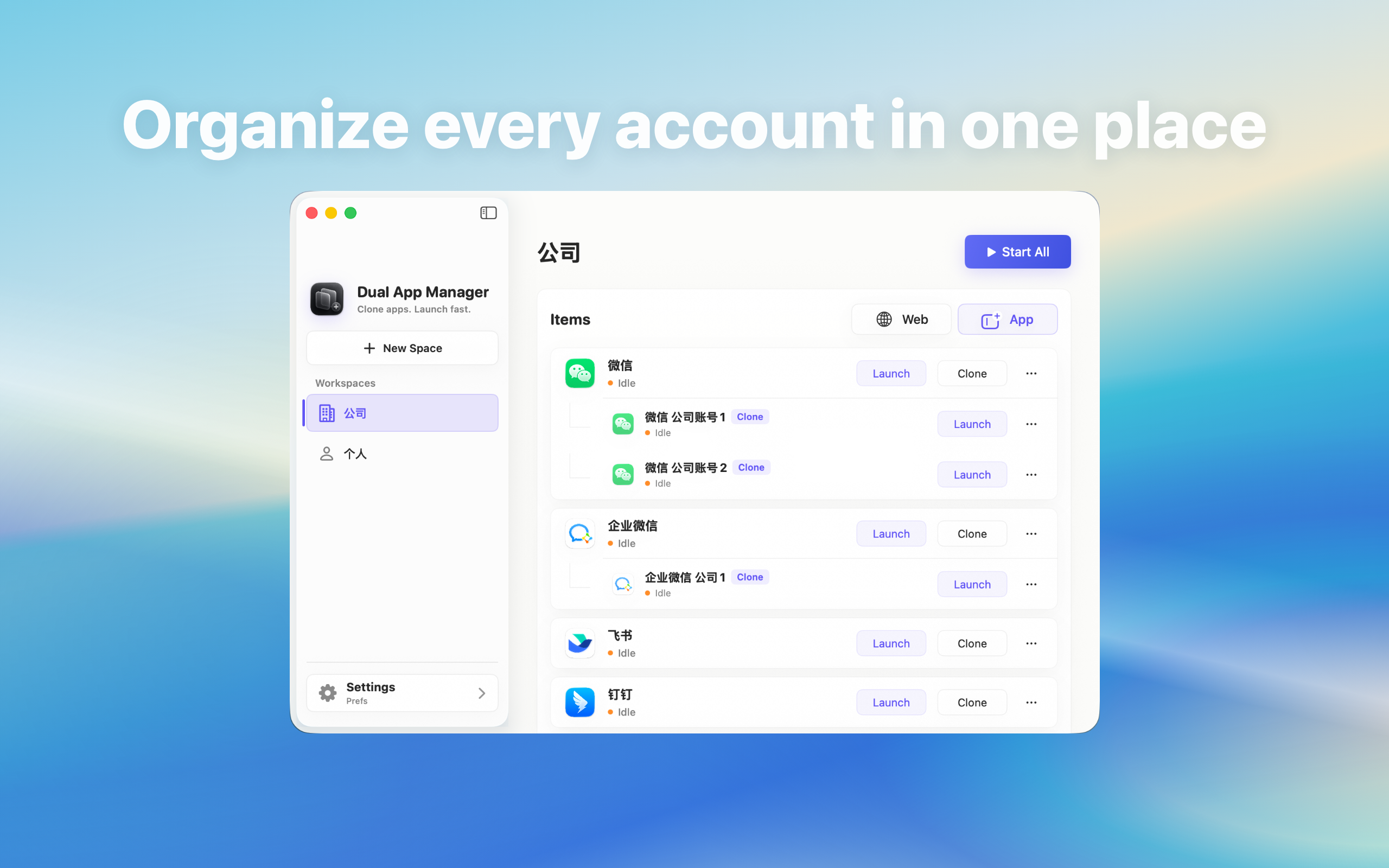
Rebuild and verify a Microsoft Teams multi-account setup on a new Mac without assuming local instances or sessions can simply be copied.
Plan a rebuild, not an invisible copy
A local Microsoft Teams instance, provider session, downloaded files, and account recovery are separate things. Do not assume Migration Assistant or copying an application entry preserves a valid authenticated workflow. Inventory roles first and use the provider's official sign-in and device approval on the new Mac.
Create a migration inventory
- List instance names and authorised account roles.
- Record official Microsoft Teams, macOS, and Dual App Master versions.
- Identify required local downloads without copying private conversations into notes.
- Confirm recovery and administrator contacts.
- Select one non-critical canary account.
Prepare the new Mac
Install the official Microsoft Teams and Dual App Master through their current distribution channels, apply normal macOS updates, and open the official app first. Verify storage, notifications, microphone, camera, and file permissions only when the workflow requires them. Avoid transferring obsolete helpers or broad permissions from the old Mac.
Recreate one role and verify it
Create a clearly named instance, authenticate through Microsoft Teams, and test identity, messages, one file, required call media, notifications, deep links, quit and reopen, and restart. Keep the old Mac available as a fallback until the canary passes, subject to organisation policy.
Move data through approved channels
Use Microsoft Teams's cloud history, export, device transfer, or administrator process where available. Move only required local files into approved storage. Do not copy unknown application containers or session tokens to avoid reauthentication; that can create corruption, security risk, or unsupported state.
Retire the old Mac deliberately
After every required role passes, sign out or revoke old sessions according to provider and employer rules, remove unneeded instances, and confirm retained files. Keep a dated migration checklist. If a critical feature fails on the new Mac, pause the rollout instead of changing all remaining accounts.