
WhatsApp second account QR code expires or is rejected on Mac
Based on the current product workflow, the linked official documentation, and repeatable checks. Account and compatibility results must be verified on your installed versions.
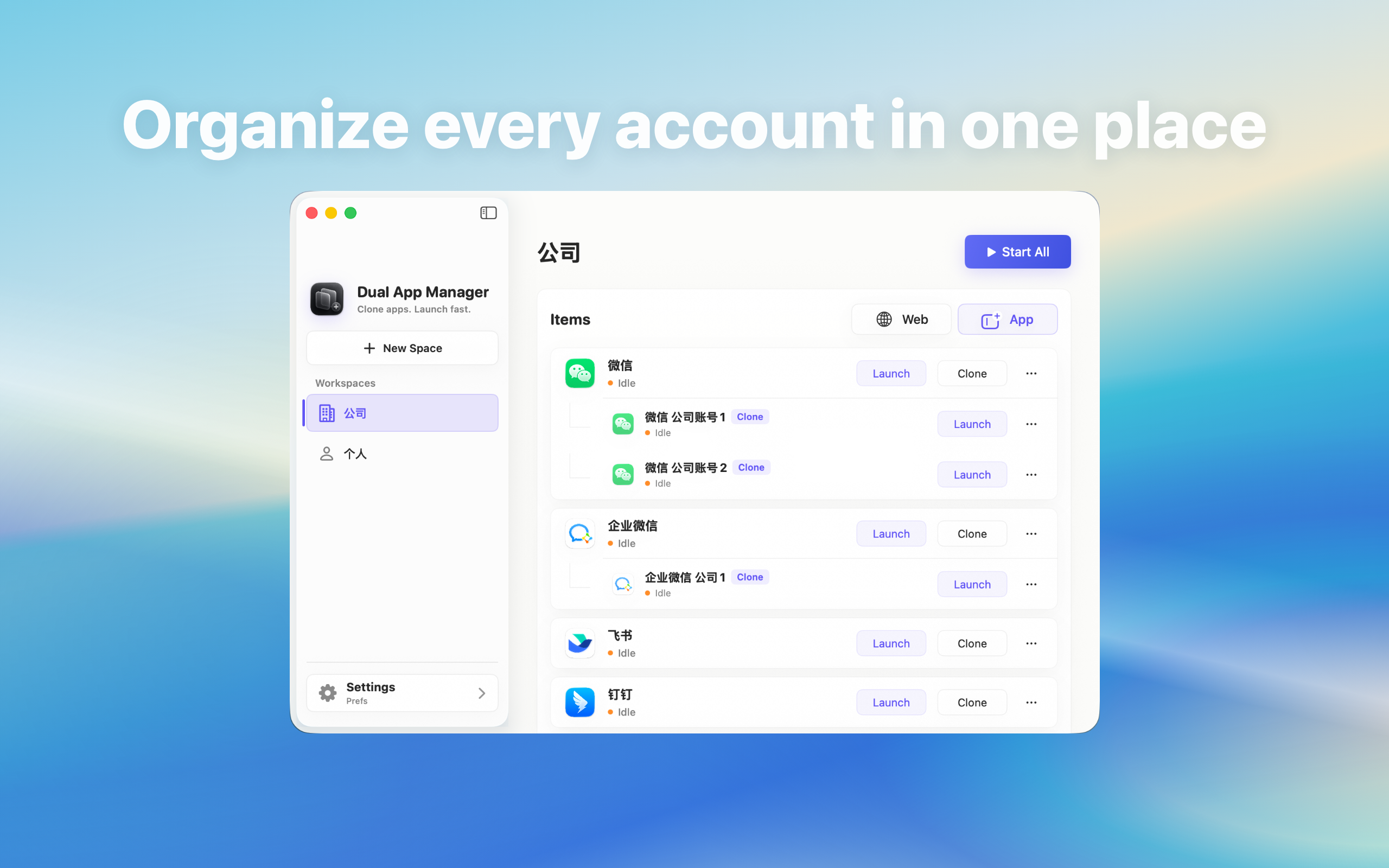
Fix a WhatsApp QR code that expires, refreshes, or is rejected while linking a second account on Mac without repeatedly creating new instances.
First identify who rejected the code
A QR window opening proves that the WhatsApp client launched; it does not prove that the provider accepted the device. Note whether the code disappears before scanning, the phone says it expired, approval succeeds but the Mac returns to login, or the provider reports a device limit. Those stages separate display, network, account approval, and session persistence. Do not infer Mac support from mobile features; inspect the current Mac client for an actual Add account or Switch account control.
Run one controlled scan
- Set automatic date and time on both devices.
- Use the current official WhatsApp mobile app and a stable network.
- Quit every other WhatsApp login window on the Mac.
- Open one clearly named instance and wait for a fresh code.
- Scan once and read the full confirmation screen before approving.
Check linked-device and account limits
WhatsApp may limit linked computers, require the phone to be online, or ask for an additional security confirmation. Review linked devices in the provider's official account settings and remove only sessions you recognise and no longer need. Do not keep approving nearly identical entries: that can make it harder to identify the authorised Mac and may trigger a security review.
Separate an expired image from a failed session
If a fresh code works in the official Mac app but not in the instance, keep the successful official session and record the two app versions. If neither works, stop changing the instance and use WhatsApp's account support. If approval briefly opens the inbox and then returns to login, the QR image was valid; investigate session persistence instead of scanning faster.
Avoid unsafe shortcuts
Do not photograph a QR code for later use, send it to another person, disable two-factor protection, or install an unofficial patched client. A login QR code can authorise account access and should be treated like a temporary credential. Dual App Master organises the local entry but cannot extend a provider token or bypass device approval.
Acceptance and stop conditions
The link passes only when the intended profile appears, a harmless message works, the session survives quit and reopen, and the provider's linked-device list shows an understandable entry. If codes expire on two networks or the provider refuses the device repeatedly, preserve the official app and stop rescanning until account status and version compatibility are confirmed.