
How to troubleshoot slow NCM conversion on an external drive
If you have local NetEase NCM files and are unsure whether to export MP3, FLAC, or M4A, this guide explains slow NCM external drive, NCM batch speed Mac as a local Mac workflow instead of an upload step.
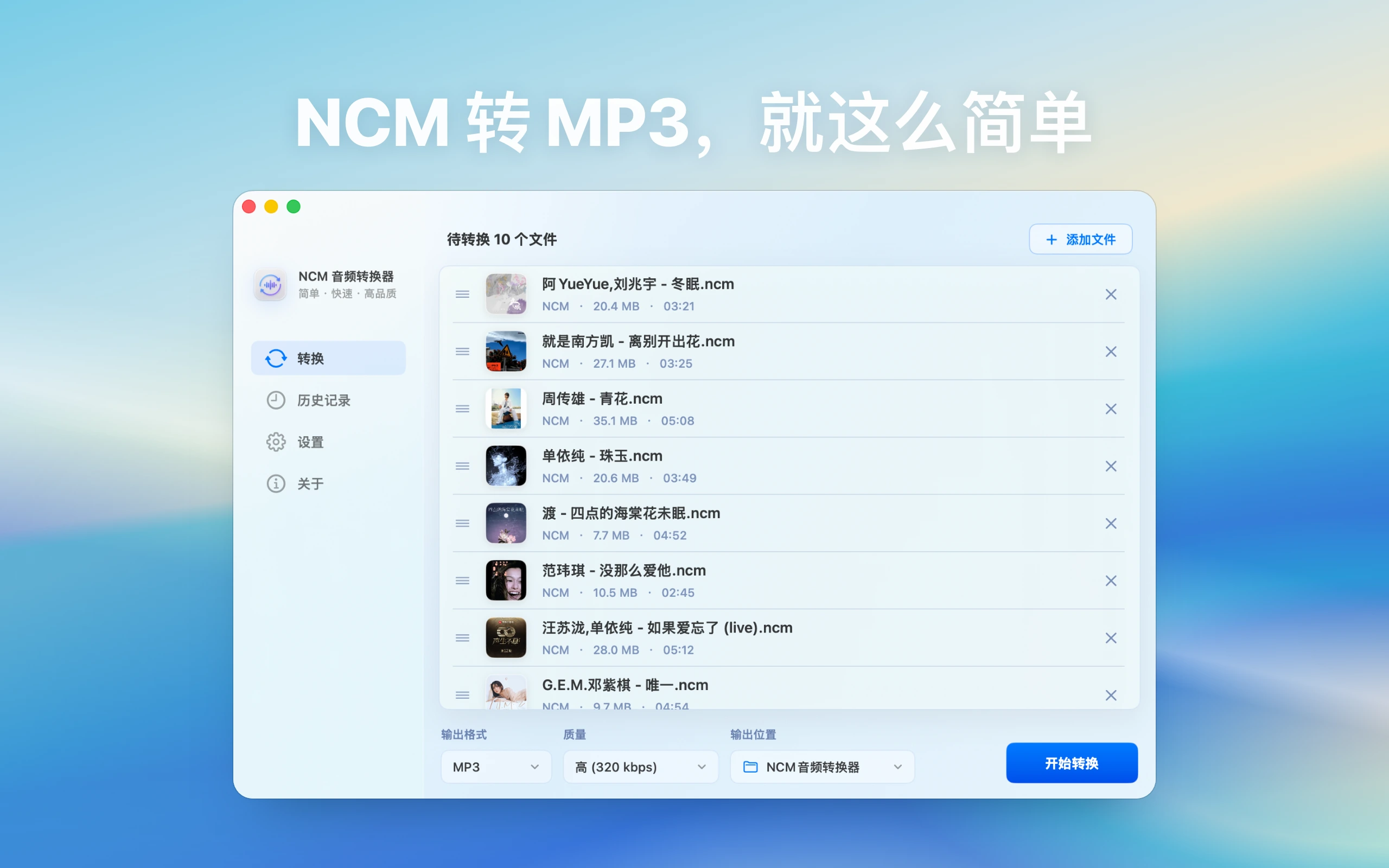
How to troubleshoot slow NCM conversion on an external drive: direct answer
For slow external-drive conversion, isolate source drive, destination drive, connection, free space, and single-file speed.
Decision: Test the same sample local-to-local, external-to-local, and external-to-external to isolate reading, writing, or conversion bottlenecks.
Steps for How to troubleshoot slow NCM conversion on an external drive
- Record filesystem, connection, hub, free space, and concurrent backup or sync activity.
- Copy one short NCM locally and convert it, then convert the same file from the external drive to a local destination.
- Test the real batch path last and observe retries, disconnects, and Mac sleep effects.
How to verify the result
- The three tests provide comparable per-file times and identify source drive, destination drive, or CPU as the constraint.
- The connection remains stable and failures are logged instead of restarting the entire batch.
Limitations and stop conditions
No guide can promise a fixed drive speed; encryption, indexing, cloud sync, and disk health all affect results.
A real-world example
For example, if you copied a folder of .ncm files from NetEase Cloud Music and want to use them in a car or general player, test two or three tracks as MP3 first. Check names, duration, and playback before converting the whole playlist.
By the end, you should understand when to use an NCM-focused workflow and what to check when output is silent or unreadable.
Start by identifying the file workflow
Before handling “slow NCM external drive, NCM batch speed Mac”, check which app the file came from, what extension it uses, whether it is already saved locally, and where you want to play it afterward. That determines the output format, naming strategy, and troubleshooting path.
Format and capability boundaries
NCM Audio Converter is positioned for NetEase Cloud Music NCM files. It does not support Kugou KGM or KGMA, and it is not positioned as a general video-to-audio tool. For NetEase Music to MP3 or NCM to MP3 tasks, use the NCM guides; for Kugou KGM/KGMA organization, use the All-in-One Audio Toolbox guides.
How to identify NCM files
NCM usually belongs to a local NetEase Cloud Music workflow. Confirm that the file is actually .ncm, and do not mix it with regular MP3, FLAC, M4A, Kugou, or QQ Music files when diagnosing the task. For NCM-only work, NCM Audio Converter has a clearer scope; for mixed folders, use the broader All-in-One Audio Toolbox guides.
Choosing output for NCM to MP3
MP3 is the practical choice for cars, phones, shared folders, and general players. FLAC is better for quality archives, M4A fits Apple workflows, and WAV is easier for editing. Test two or three files before a large batch and check duration, volume, names, and playback.
Failures, silent output, and permissions
If files cannot be read, check source integrity, external drives, protected macOS folders, and output permissions. If the exported file is silent, test another player first, then rerun a single file to a simple output such as MP3 or WAV.
Troubleshooting
- Read failure: check source integrity and access to input and output folders.
- Unexpected output: test the same file in the destination player and check duration, channels, and tags.
- Batch failure: retry one sample, retain originals, and record formats and app version.