Folder Quick Look
Designed for everyday Mac workflows with clear local boundaries and a clear download path
 Huag Mac Apps
View apps
中文
Huag Mac Apps
View apps
中文

Select folders, archives, Markdown files, or ebooks in Finder and press Space to preview contents before opening or extracting
Page updated: 2026-08-12
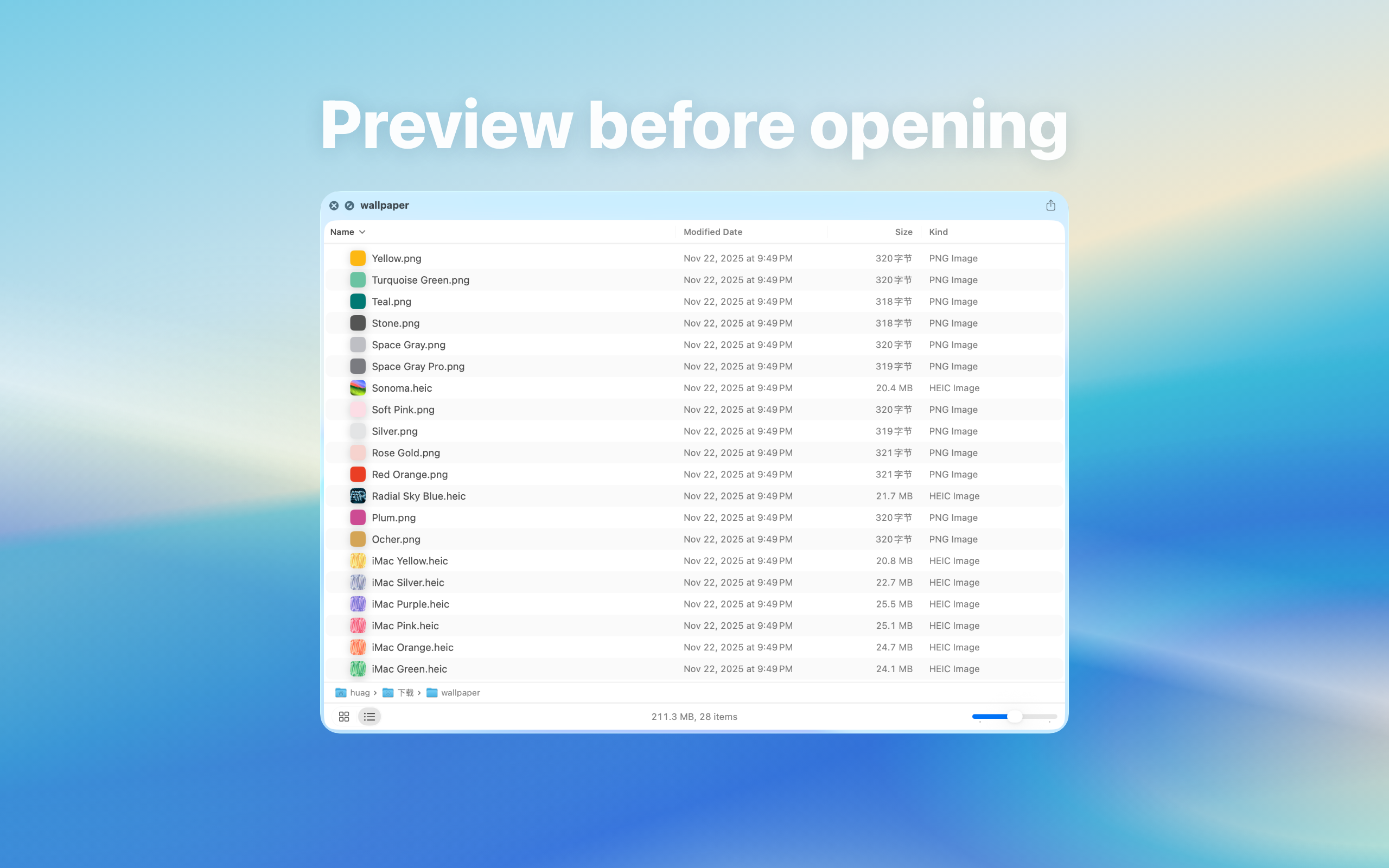
Designed for everyday Mac workflows with clear local boundaries and a clear download path
Designed for everyday Mac workflows with clear local boundaries and a clear download path
Designed for everyday Mac workflows with clear local boundaries and a clear download path
Designed for everyday Mac workflows with clear local boundaries and a clear download path
Entity facts
These facts make the product easier to evaluate and easier for search and AI systems to cite accurately.
Check public facts, fit conditions, and repeatable verification steps before installing.
Compare Quick Preview, Unfold, OnePreview, and Qlooq using their public positioning for folders, archives, Markdown, code, and ebook previews.
View transparent comparisonUse one Finder Space-bar workflow to verify folders, archives, Markdown, and ebooks while recording macOS version, file type, and failure conditions.
View verification checklistQuick Look previews for folders, archives, Markdown, and ebooks
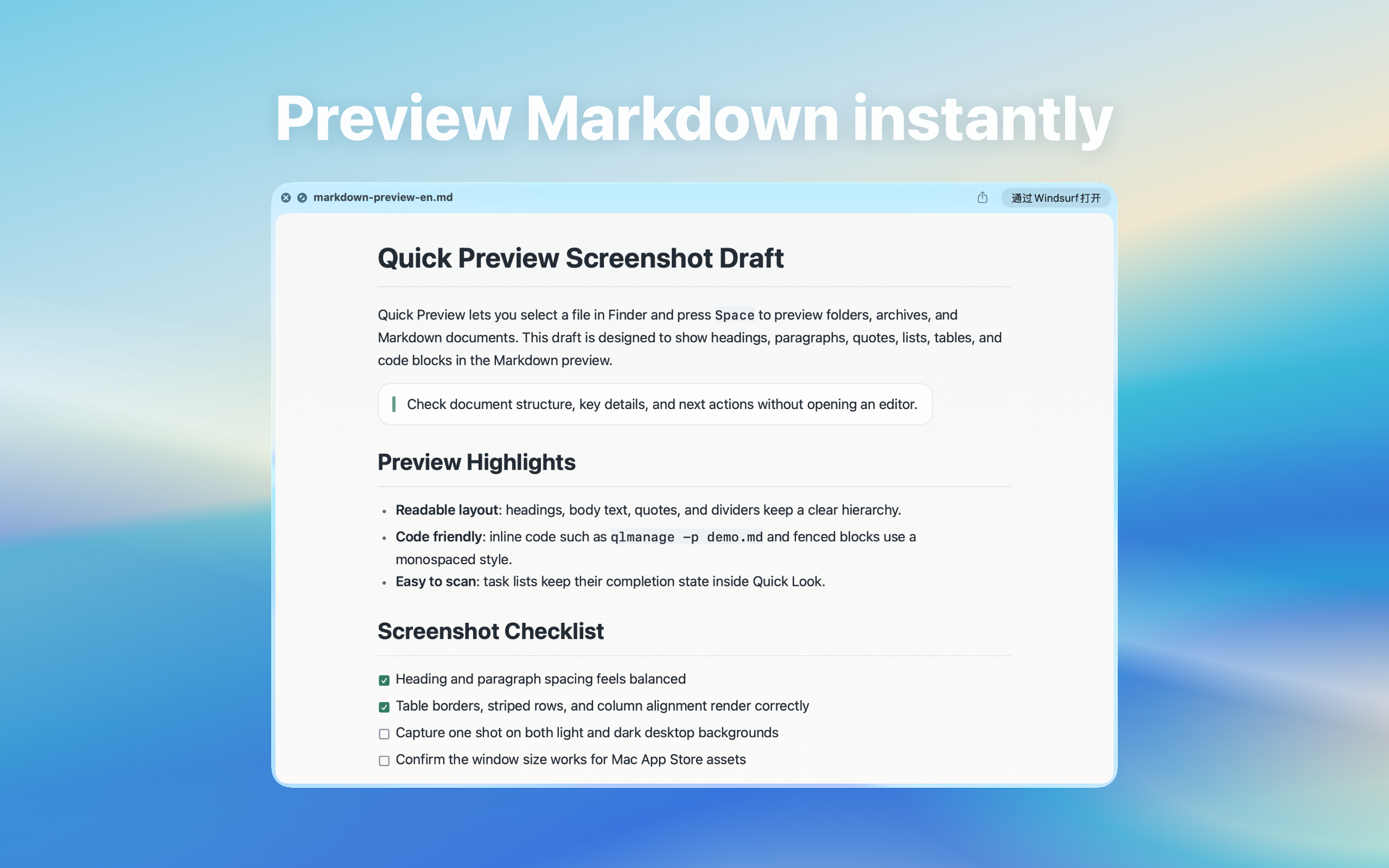
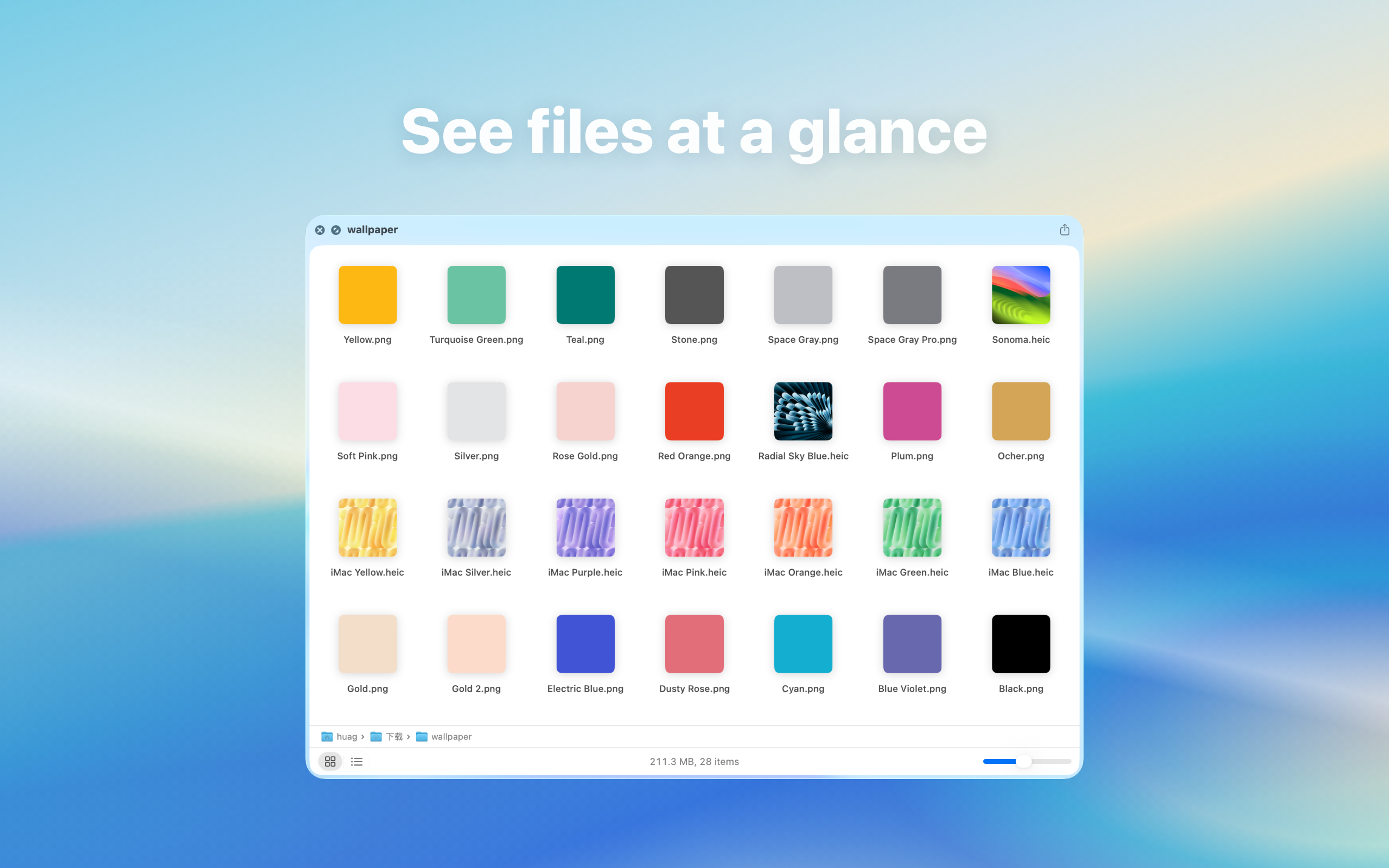
This site explains product features, use cases, privacy posture, and download links only. It does not provide upload services, user publishing, content trading, or claims outside the app scope
Guides cover common questions, format choices, privacy boundaries, and local Mac workflows
When folders, archives, Markdown, or ebooks are not worth opening one by one, this guide explains where folder preview Mac, Quick Look extension helps.
When folders, archives, Markdown, or ebooks are not worth opening one by one, this guide explains where archive preview, ZIP preview helps.
When folders, archives, Markdown, or ebooks are not worth opening one by one, this guide explains where folder Quick Look not working, Finder preview issue helps.
No. You still select an item and press Space; the extension simply makes more items previewable.
The website highlights folders, archives, Markdown, EPUB, MOBI, AZW, and AZW3 workflows.
No. The preview workflow is built around local files selected by the user.
After installing and enabling the Quick Look extension, select a supported folder or archive in Finder and press Space. If no preview appears, check extension status, file permission, and macOS compatibility.
Quick Look tools differ in format coverage, system requirements, and interaction. Compare the file types you actually use—folders, archives, Markdown, code, or ebooks—against each vendor's current documentation.