
What to do when converted NCM files are missing
If you have local NetEase NCM files and are unsure whether to export MP3, FLAC, or M4A, this guide explains NCM output missing, converted files missing as a local Mac workflow instead of an upload step.
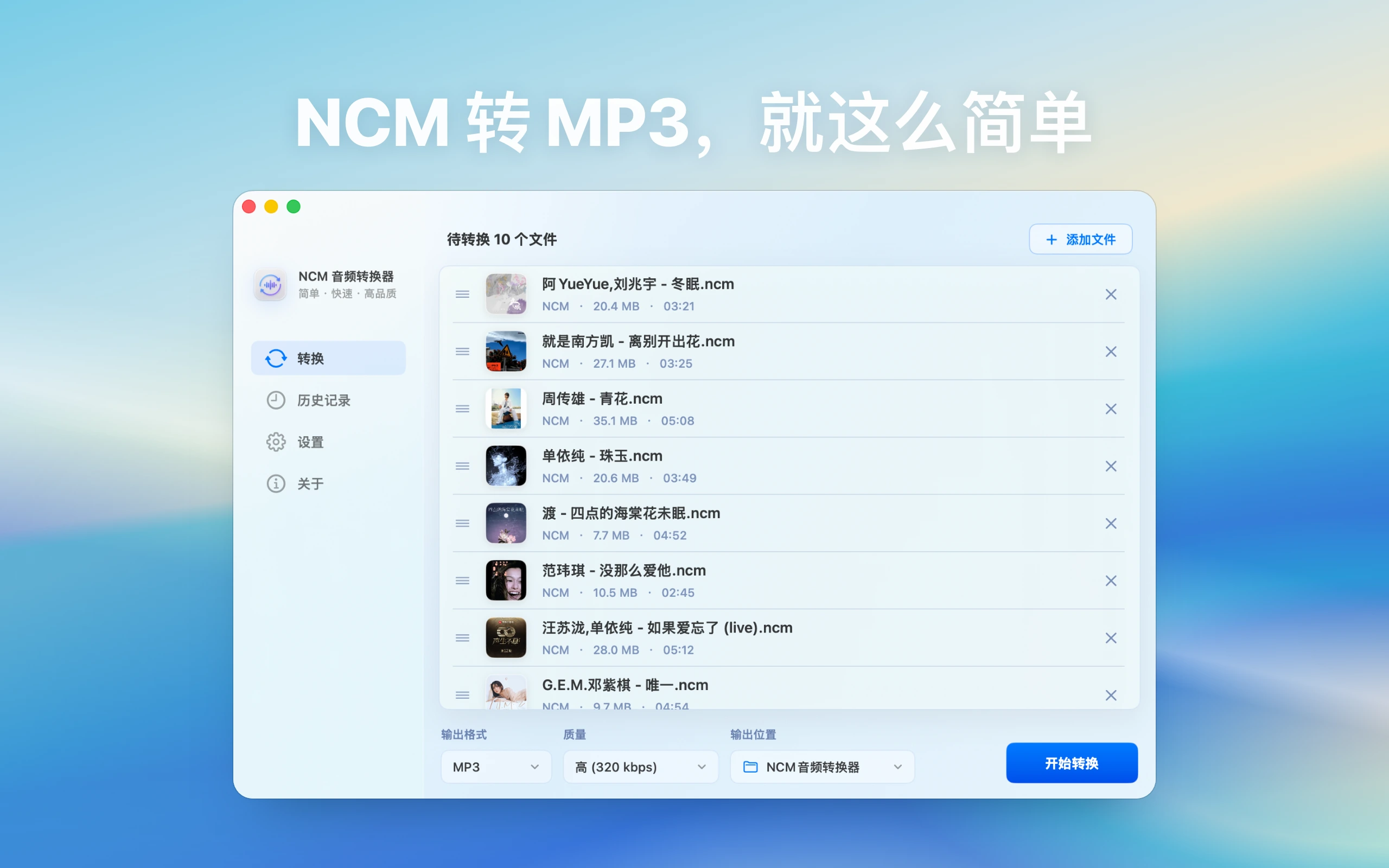
A real-world example
For example, if you copied a folder of .ncm files from NetEase Cloud Music and want to use them in a car or general player, test two or three tracks as MP3 first. Check names, duration, and playback before converting the whole playlist.
By the end, you should understand when to use an NCM-focused workflow and what to check when output is silent or unreadable.
What to do when converted NCM files are missing: direct answer
If converted files seem missing, check output folder, permissions, history, naming rules, and alternate save locations.
This guide is for Mac users searching “NCM output missing” who need to evaluate capability, privacy boundaries, and failure conditions together.
How to decide whether this guide fits
When people search for “What to do when converted NCM files are missing”, the real question is usually where the local workflow is stuck. Use these scenarios to decide whether the article's process matches your case.
| Current situation | Why it matters | Suggested action |
|---|---|---|
| You need general playback or a car USB drive | MP3 is usually the most compatible target for NCM output missing, converted files missing. | Test a few files in the target player before converting a whole folder. |
| You want quality preservation or long-term archive | FLAC preserves more quality, while WAV is easier for editing. | Do not send every source straight to a low-bitrate MP3. |
| Files come from several music platforms or recording contexts | Grouping first prevents NCM, KGM, QMC, and regular audio from becoming one hard-to-debug batch. | Organize source, output, and retry folders before processing. |
If your case is not in the table, return to four basics: source, permission, target device, and privacy boundary. Once those are clear, tool choice and troubleshooting become much easier.
Start by identifying the file workflow
Before handling “NCM output missing, converted files missing”, check which app the file came from, what extension it uses, whether it is already saved locally, and where you want to play it afterward. That determines the output format, naming strategy, and troubleshooting path.
Format and capability boundaries
NCM Audio Converter is positioned for NetEase Cloud Music NCM files. It does not support Kugou KGM or KGMA, and it is not positioned as a general video-to-audio tool. For NetEase Music to MP3 or NCM to MP3 tasks, use the NCM guides; for Kugou KGM/KGMA organization, use the All-in-One Audio Toolbox guides.
How to identify NCM files
NCM usually belongs to a local NetEase Cloud Music workflow. Confirm that the file is actually .ncm, and do not mix it with regular MP3, FLAC, M4A, Kugou, or QQ Music files when diagnosing the task. For NCM-only work, NCM Audio Converter has a clearer scope; for mixed folders, use the broader All-in-One Audio Toolbox guides.
Choosing output for NCM to MP3
MP3 is the practical choice for cars, phones, shared folders, and general players. FLAC is better for quality archives, M4A fits Apple workflows, and WAV is easier for editing. Test two or three files before a large batch and check duration, volume, names, and playback.
Failures, silent output, and permissions
If files cannot be read, check source integrity, external drives, protected macOS folders, and output permissions. If the exported file is silent, test another player first, then rerun a single file to a simple output such as MP3 or WAV.
Recommended local workflow
- Create a test folder with two or three representative files instead of starting with the whole library.
- Check the extension, source app, local download state, and whether you have the right to process those local files.
- Choose MP3, FLAC, M4A, or WAV based on the target use; for cars and cross-device playback, test MP3 first.
- In NCM Audio Converter, choose a clear output folder, export the sample, and inspect duration, volume, filenames, and tags.
- After the sample passes, process the full batch and keep failed items in a retry folder for diagnosis.
For NetEase NCM-only tasks, start with the NCM to MP3 guide. For mixed sources, use this article's format boundaries before batching.