
How to convert downloaded NetEase Cloud Music songs to MP3
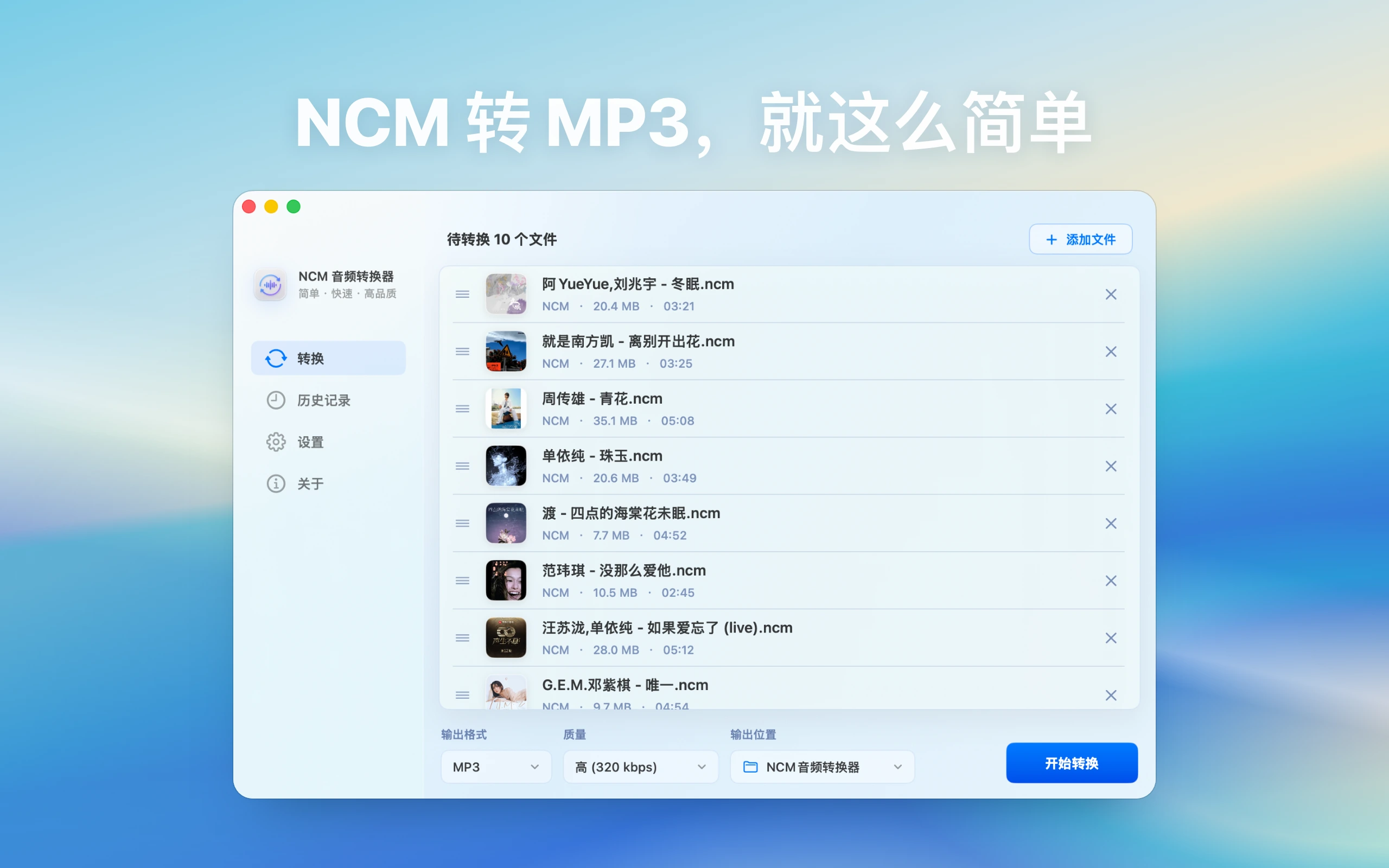
Identify the actual local file first. Existing MP3 files usually need no conversion. Use NCM Audio Converter for NCM files; consider Audio Toolbox for mixed formats or further trimming and compression.
Choose by the file you have
- .ncm: start with one sample in NCM Audio Converter.
- MP3, FLAC, or M4A: try the destination player first; convert only for compatibility or further processing.
- Downloaded only inside the music client: confirm you have a readable local file. This guide does not download online tracks or unlock account access.
Convert one NCM sample to MP3
- Keep the original and add one complete local NCM file to NCM Audio Converter.
- Choose MP3 and a fresh output folder you can find easily.
- Convert, then check the beginning, middle, end, and duration in your destination player.
- Verify filename, artist, artwork, and device playback before converting the remaining NCM files.
When Audio Toolbox fits better
For video extraction, trimming, merging, compression, or tag editing, review Audio Toolbox’s features. Group mixed sources by extension and confirm current format support. Exporting a lossy source as FLAC or WAV does not restore missing audio detail.