
How to organize QMCFLAC files as FLAC on Mac
If you see QMC0, QMC3, QMCFLAC, MFLAC, or MGG and are not sure how they differ from ordinary audio, this guide explains QMCFLAC to FLAC, QQ Music FLAC through format grouping and output choices.
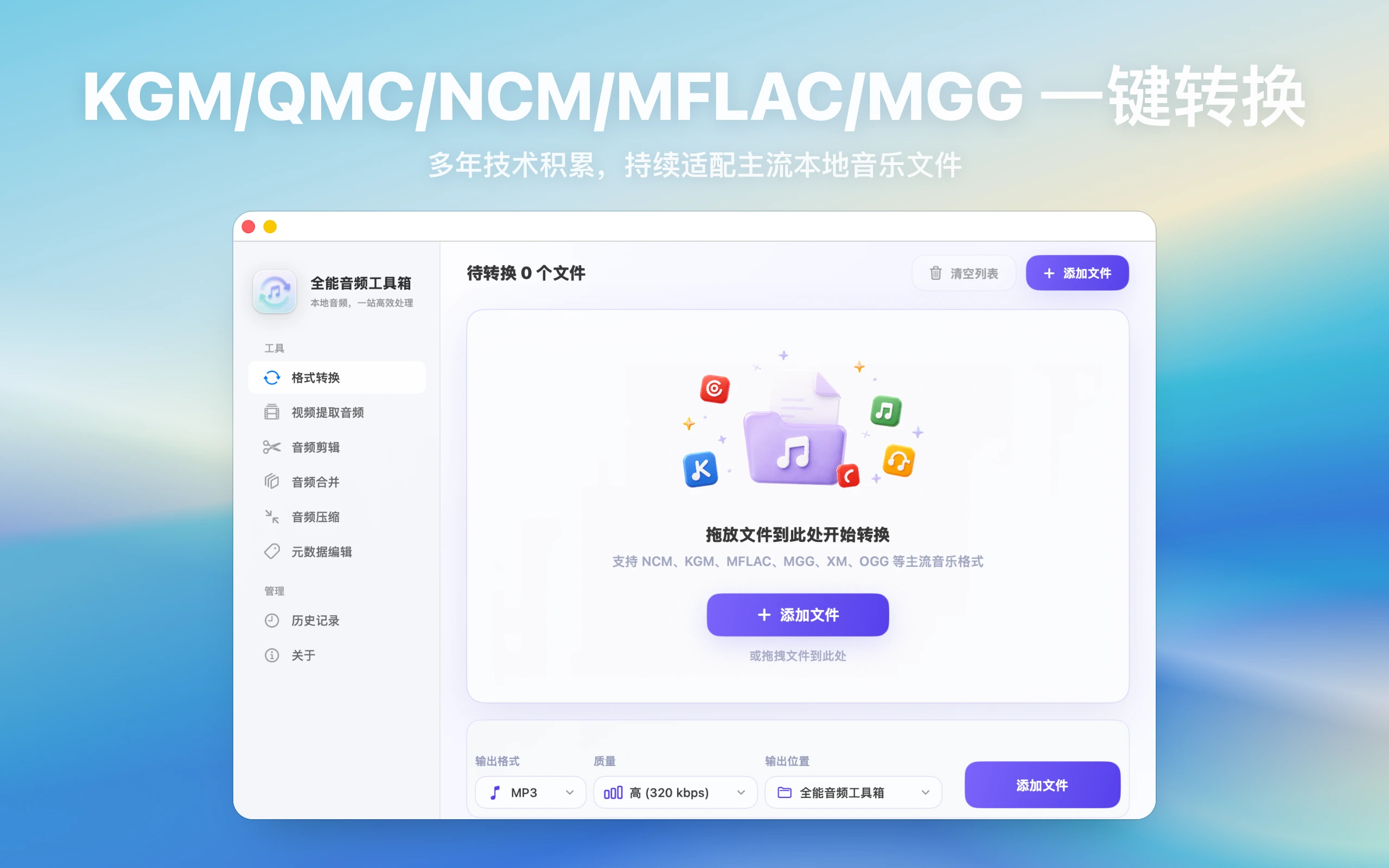
A real-world example
For example, a folder that contains both MFLAC and MGG should not be treated as one anonymous batch. Group by extension first, export MP3 or FLAC based on purpose, then spot-check artist, album, and duration.
By the end, you should be able to group QQ Music files and choose the right output for playback or archiving.
How to organize QMCFLAC files as FLAC on Mac: direct answer
QMCFLAC files are often related to QQ Music local lossless formats, so confirm source, file integrity, output folder, and player compatibility.
This guide is for Mac users searching “QMCFLAC to FLAC” who need to evaluate capability, privacy boundaries, and failure conditions together.
How to decide whether this guide fits
When people search for “How to organize QMCFLAC files as FLAC on Mac”, the real question is usually where the local workflow is stuck. Use these scenarios to decide whether the article's process matches your case.
| Current situation | Why it matters | Suggested action |
|---|---|---|
| You need general playback or a car USB drive | MP3 is usually the most compatible target for QMCFLAC to FLAC, QQ Music FLAC. | Test a few files in the target player before converting a whole folder. |
| You want quality preservation or long-term archive | FLAC preserves more quality, while WAV is easier for editing. | Do not send every source straight to a low-bitrate MP3. |
| Files come from several music platforms or recording contexts | Grouping first prevents NCM, KGM, QMC, and regular audio from becoming one hard-to-debug batch. | Organize source, output, and retry folders before processing. |
If your case is not in the table, return to four basics: source, permission, target device, and privacy boundary. Once those are clear, tool choice and troubleshooting become much easier.
Start by identifying the file workflow
Before handling “QMCFLAC to FLAC, QQ Music FLAC”, check which app the file came from, what extension it uses, whether it is already saved locally, and where you want to play it afterward. That determines the output format, naming strategy, and troubleshooting path.
Format and capability boundaries
NetEase Cloud Music NCM, QQ Music QMC/MFLAC/MGG, Kugou KGM/KGMA, Ximalaya audio, Qingting FM, Lizhi, Xiaoyuzhou, audiobooks, podcasts, and editing-app assets come from different platform or content workflows. Before processing, confirm the source, file type, and rights, then choose a local conversion workflow, batch queue, and output format. All-in-One Audio Toolbox is positioned for broader music-format organization; for NetEase NCM-only workflows, see NCM Audio Converter.
Separate QMC, MFLAC, and MGG first
QQ Music local files use several names: QMC, QMC0, QMC3, QMCFLAC, MFLAC, and MGG. Group files by extension and source before deciding whether MP3 compatibility or FLAC archiving is the better target.
MP3 or FLAC output
Choose MP3 for cars, phones, older players, and sharing. Choose FLAC when preserving more quality matters, especially with MFLAC or QMCFLAC-like files. A local tool is useful when several QQ Music formats need to be handled in one batch.
Batch organization
Use a source folder, an export folder, and a retry folder for failed items. After conversion, spot-check names, artists, albums, and duration so mixed QMC/MFLAC/MGG batches remain traceable.
Recommended local workflow
- Create a test folder with two or three representative files instead of starting with the whole library.
- Check the extension, source app, local download state, and whether you have the right to process those local files.
- Choose MP3, FLAC, M4A, or WAV based on the target use; for cars and cross-device playback, test MP3 first.
- In All-in-One Audio Toolbox, choose a clear output folder, export the sample, and inspect duration, volume, filenames, and tags.
- After the sample passes, process the full batch and keep failed items in a retry folder for diagnosis.
For NetEase NCM-only tasks, start with the NCM to MP3 guide. For mixed sources, use this article's format boundaries before batching.