
Clipboard history for writing and research
If you copied text, a link, a code snippet, or an image and then lost it after copying something else, this guide explains writing clipboard, research workflow through a real Mac clipboard workflow.
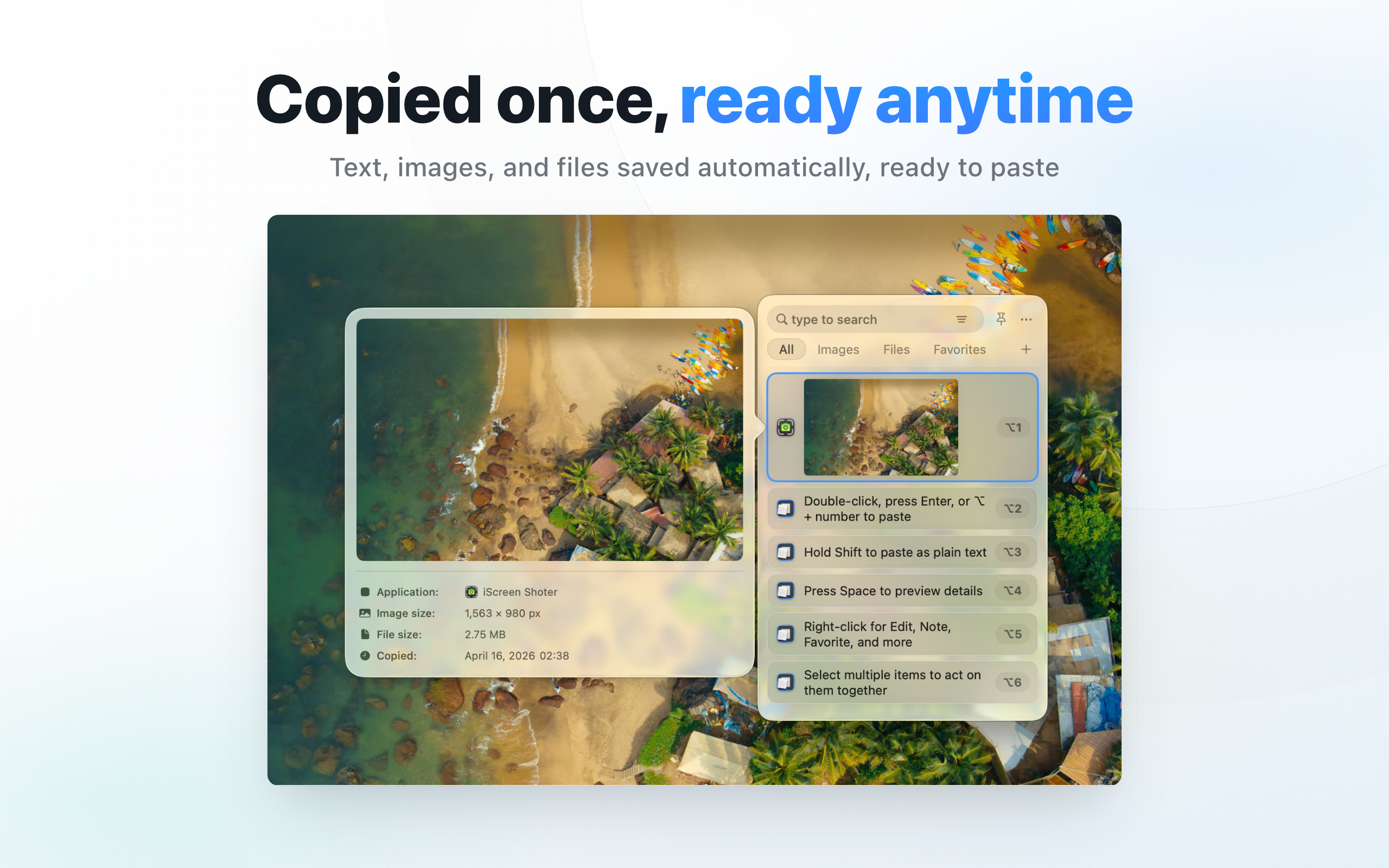
A real-world example
For example, while writing a document you may copy a client name, then a browser link, then an email paragraph. On macOS Tahoe 26, check Spotlight Clipboard history first; earlier items may not have been recorded if history was disabled. CopyHistory helps organize captured items with search, favorites, notes, and lists.
By the end, you should know which clipboard items are worth keeping, which should be cleaned, and how to avoid retaining sensitive entries.
Clipboard history for writing and research: direct answer
Writing, research, and link collection benefit from searchable copy history.
This guide is for Mac users searching “writing clipboard” who need to evaluate capability, privacy boundaries, and failure conditions together.
How to decide whether this guide fits
When people search for “Clipboard history for writing and research”, the real question is usually where the local workflow is stuck. Use these scenarios to decide whether the article's process matches your case.
| Current situation | Why it matters | Suggested action |
|---|---|---|
| New copied content often overwrites what you needed | You need searchable history, favorites, and fast paste, not a temporary note. | Identify which apps produce the items you recover most, then set a cleanup habit. |
| Copied content may contain client details or codes | Privacy boundaries matter more than saving everything. | Clean sensitive entries and review local storage and ignore rules. |
| Writing, development, or support work repeats snippets | Search and reusable lists reduce trips back to source documents. | Favorite high-use snippets instead of relying on the system clipboard only. |
If your case is not in the table, return to four basics: source, permission, target device, and privacy boundary. Once those are clear, tool choice and troubleshooting become much easier.
Start with the clipboard problem
For “writing clipboard, research workflow”, the goal is not format conversion. The practical value is recovering overwritten content, finding reusable snippets, searching copied links or images, and controlling what the clipboard history stores.
Daily workflow
Keep frequent text, links, code snippets, and image items easy to scan. Pin or favorite reusable items, and clean up old entries so search results stay useful.
Privacy and permissions
Clipboard data can include codes, links, client notes, or temporary snippets. Review storage behavior, ignore rules, and local data boundaries before relying on the tool.
A 4-step clipboard history setup
- Open CopyHistory first, then copy non-sensitive sample text, public links, or images to check which types you need to keep.
- Open CopyHistory and verify that keyword search and type filters make those items easy to find.
- Favorite or pin reusable items so you do not repeatedly reopen source documents, chats, or browser tabs.
- Clean old entries periodically and review the privacy page so temporary content does not stay longer than needed.