
How to evaluate privacy and permissions for Dock lock utilities
If your Dock moves to another display after an edge gesture, or interrupts presentation and full-screen work, this guide explains Dock utility privacy, Accessibility permission through a multi-display Mac setup.
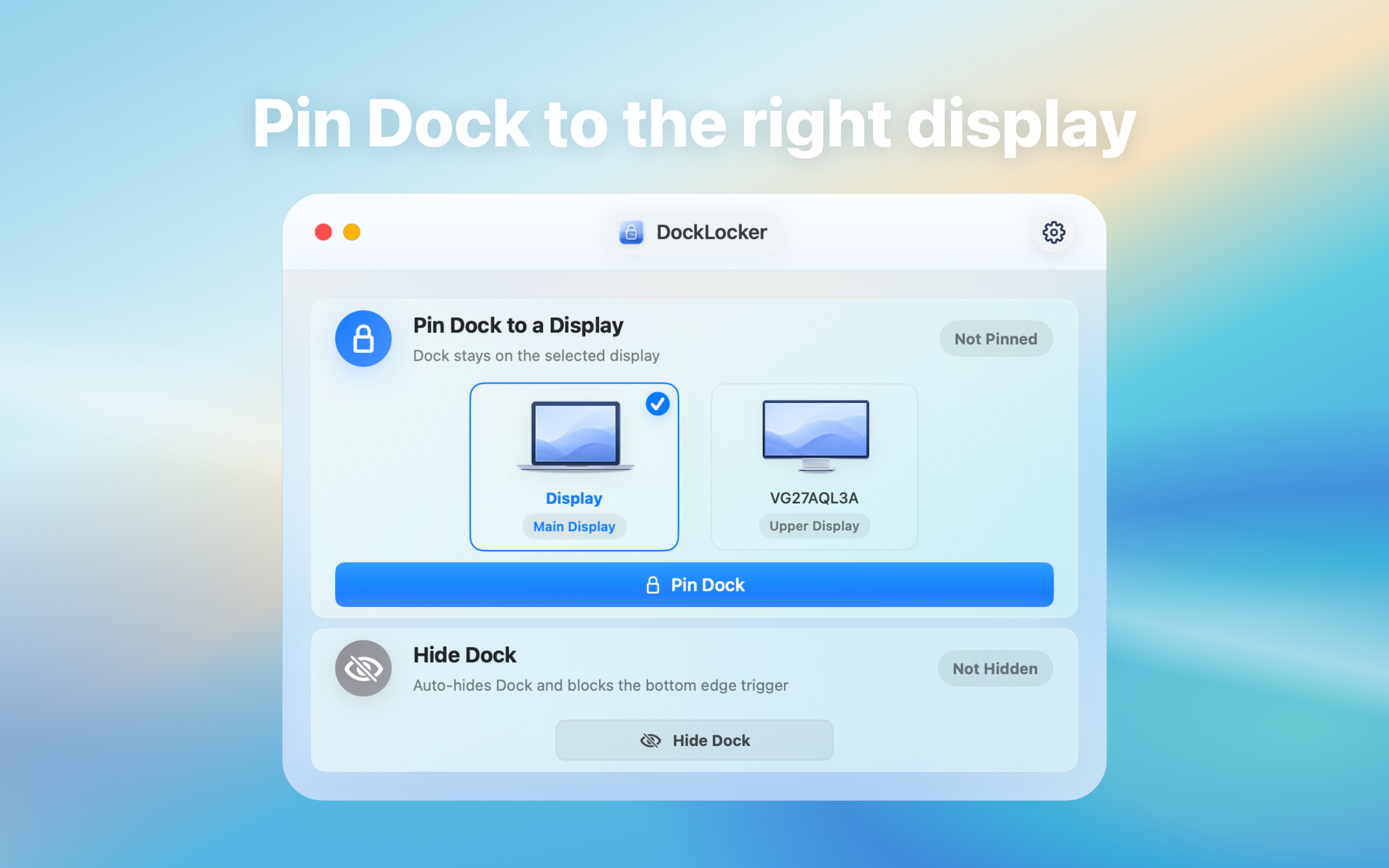
How to evaluate privacy and permissions for Dock lock utilities: direct answer
System-assistive utilities should explain permission use, local processing, download source, and whether data is uploaded.
Decision: When evaluating a Dock lock utility, confirm it handles pointer-edge and Dock behavior rather than document content, and check whether networking, accounts, or cloud sync are required.
Steps for How to evaluate privacy and permissions for Dock lock utilities
- Read the product page, privacy policy, and system permission prompt, listing data the app says it handles and does not handle.
- Test in a clean scenario without private files, interacting only with displays, the Dock, and menu-bar controls.
- Record whether login, networking, or extra file access is requested; stop and contact the developer if behavior differs from public documentation.
How to verify the result
- Core behavior can be tested without importing files or creating an account and permission scope matches product documentation.
- Before uninstalling, disable login launch and revoke Accessibility access so the utility can be fully stopped.
Limitations and stop conditions
Website disclosure is not an independent security audit; organizations with compliance requirements should review signing, networking, and permission behavior.
A real-world example
For example, with a main display on the left and an external display on the right, pointer movement between screens may trigger the Dock unexpectedly. DockLocker is not meant to replace macOS navigation; it reduces that specific interruption.
By the end, you should know whether Dock locking fits your setup and what to check before granting Accessibility permission.
Confirm where Dock interruptions happen
For “Dock utility privacy, Accessibility permission”, check whether the issue appears with multiple displays, presentations, full-screen work, or accidental edge gestures. The screen layout and working posture matter.
Dock locking workflow
Install the app, grant the required macOS permissions, and tune behavior around your display setup. The goal is to reduce accidental Dock movement or activation, not to replace normal macOS navigation.
Permission notes
Dock utilities may need local system permissions to detect and constrain interactions. Review the product page, privacy notes, download source, and update path before relying on it.
Troubleshooting
- No effect: confirm DockLocker is running, locking is enabled, and Accessibility access is granted.
- Full-screen or wake issue: record display arrangement, Dock position, and triggering movement.
- Inconsistent behavior: disable locking and save version and configuration details for support.