
Quickly preview EPUB, MOBI, and AZW ebooks on Mac
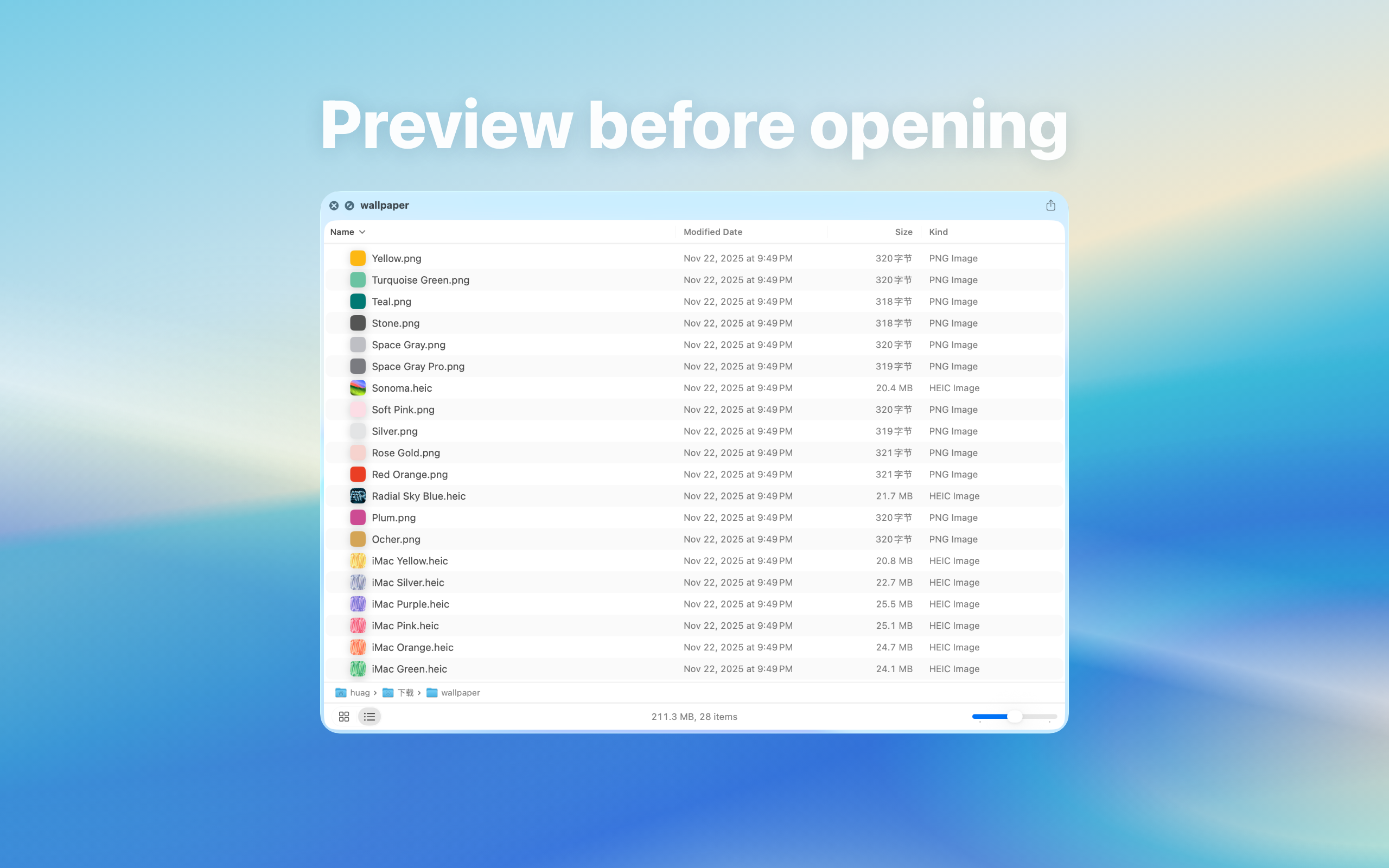
Need to identify similarly named ebooks before opening a reader? Quick Preview adds supported ebook previews to Finder’s Space-bar workflow. Use a full reader for extended reading, annotations, and library management.
Check the format and local file
The product lists EPUB, MOBI, AZW, and AZW3. An extension does not guarantee that every encoding, protected variant, or damaged file can be previewed. Start with a fully downloaded local book you can open in its usual reader.
Enable and open a preview
- Install Quick Preview from the App Store, open it, and follow its extension instructions.
- Search System Settings for Quick Look or extensions and enable the relevant preview extension using the controls in your macOS version.
- Select an ebook in Finder and press Space. Check whether the displayed title, contents, or text identifies the book; the available view depends on its format.
- Close the preview with Space and compare another book. Open a full reader when you need reading or annotation tools.
If you see an icon, blank view, or unreadable text
Check the same file in a reader, then try another sample in the same format. If every sample fails, review extension settings and reopen the Finder preview. If only one fails, check file integrity and format compatibility. Renaming its extension does not convert it.
Decide using your own books
For each format you regularly use, check identification, readable text, and whether previewing saves opening a reader. These are verification steps, not a claim that every ebook variant has been tested. Consult the current App Store listing for price and system requirements.