
Why multilingual support matters in preview tools
If you only want to see what is inside a folder, whether an archive is worth extracting, or whether a Markdown or ebook file is the right one, this guide puts multilingual preview tool, Mac utility into a real Finder workflow.
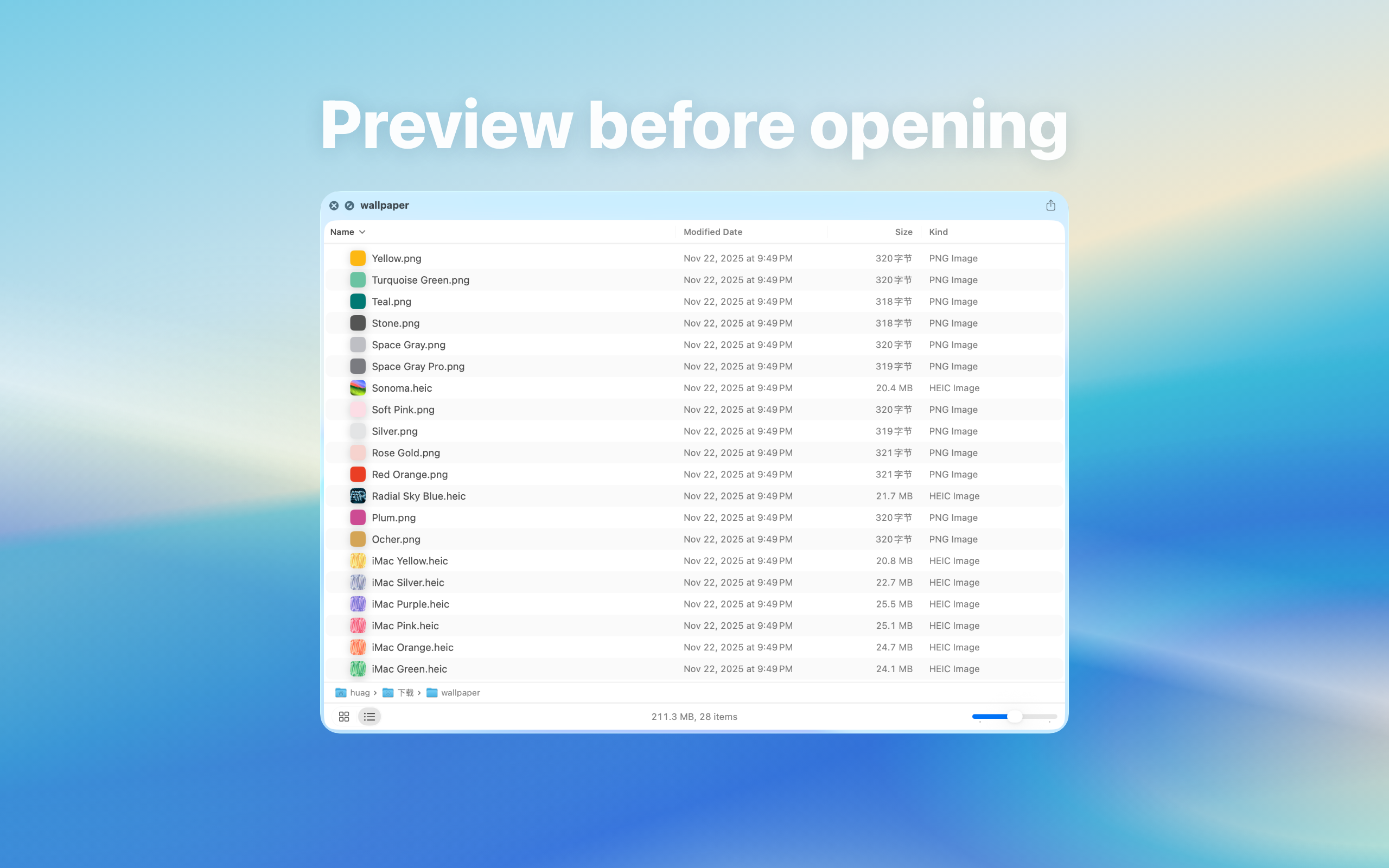
A real-world example
For example, several similarly named archives in Downloads can waste time and disk space if each one is extracted. With Quick Preview, previewing the structure first helps you decide which archive to open, move, or delete.
By the end, you should know when pressing Space is enough and when a dedicated app is still needed.
Why multilingual support matters in preview tools: direct answer
When teams and devices use different languages, clear localization reduces friction.
This guide is for Mac users searching “multilingual preview tool” who need to evaluate capability, privacy boundaries, and failure conditions together.
How to decide whether this guide fits
When people search for “Why multilingual support matters in preview tools”, the real question is usually where the local workflow is stuck. Use these scenarios to decide whether the article's process matches your case.
| Current situation | Why it matters | Suggested action |
|---|---|---|
| You only need to see what is inside a folder or archive | Previewing is faster than opening or extracting the full item. | Inspect structure first, then decide whether to open, move, or delete it. |
| You often handle Markdown or ebooks | Quick Look can reduce switching between readers and editors. | Test sample files before making it part of your daily workflow. |
| Downloads contain many unknown files | Previewing reduces accidental opens and unnecessary extraction. | Start with unclear, large, or similarly named files. |
If your case is not in the table, return to four basics: source, permission, target device, and privacy boundary. Once those are clear, tool choice and troubleshooting become much easier.
Identify the preview target first
For “multilingual preview tool, Mac utility”, start by checking whether the target is a folder, archive, Markdown file, ebook, or project directory. Each type has a different preview goal.
When previewing is faster than opening
Downloads, project assets, archives, and document collections often only need a quick structural check. Quick Look preview reduces unnecessary app switching, extraction, and accidental opens.
Local preview boundary
File structure, document text, and archive listings are local data. A local Quick Look extension lets you inspect them without uploading files to a web service.
A 4-step preview test
- Create a small sample folder with the folders, archives, Markdown files, or ebooks you meet most often.
- Select each item in Finder and press Space to see whether the preview answers your question before opening the file.
- Test Downloads, project assets, and archived material separately so you can see where previewing saves the most time.
- If preview fails, check file type, file integrity, Quick Look extension permissions, and the product page notes.