
Why the Dock moves between displays
If your Dock moves to another display after an edge gesture, or interrupts presentation and full-screen work, this guide explains multi-display Dock, macOS Dock through a multi-display Mac setup.
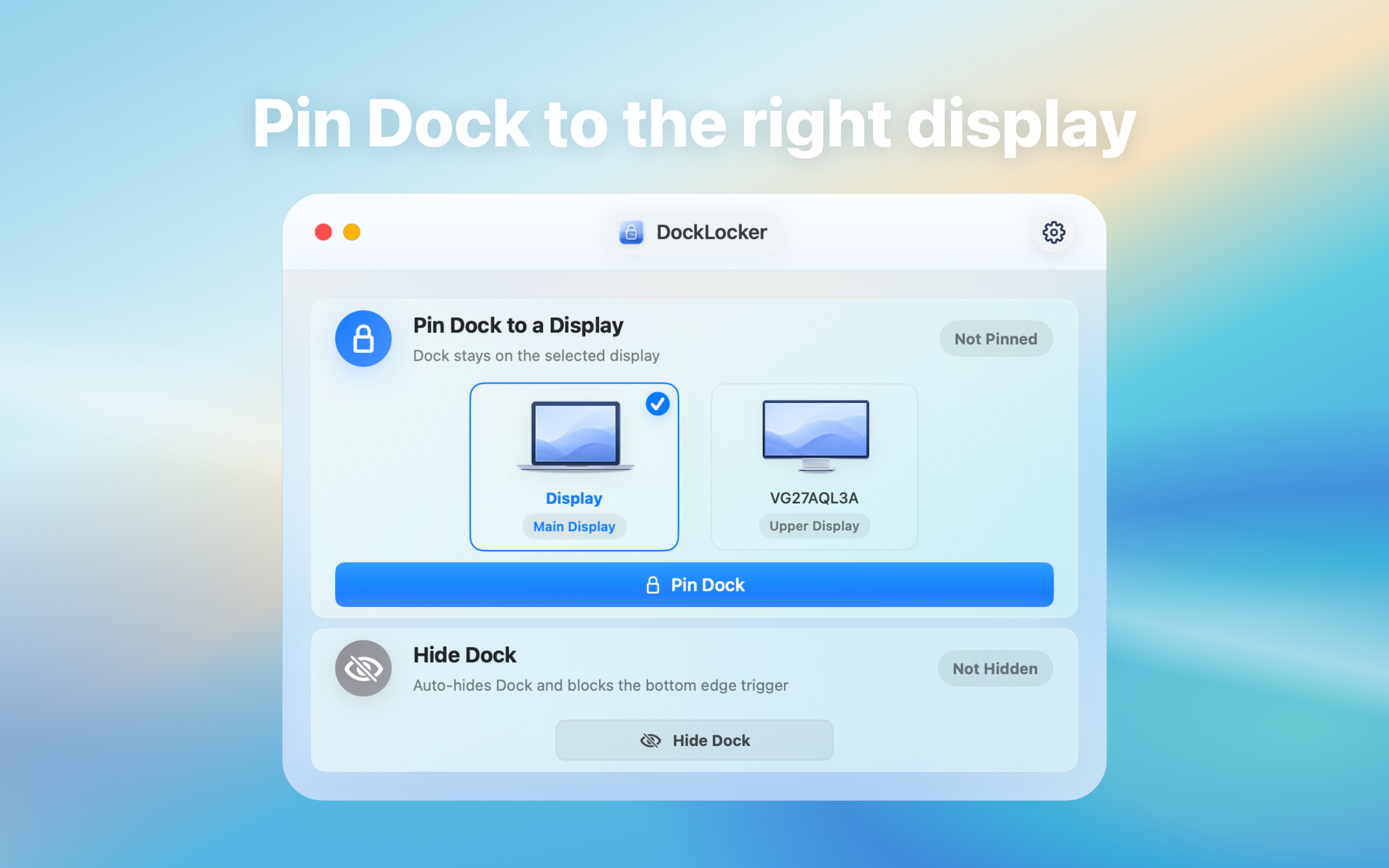
A real-world example
For example, with a main display on the left and an external display on the right, pointer movement between screens may trigger the Dock unexpectedly. DockLocker is not meant to replace macOS navigation; it reduces that specific interruption.
By the end, you should know whether Dock locking fits your setup and what to check before granting Accessibility permission.
Why the Dock moves between displays: direct answer
macOS can move the Dock based on edge gestures, which may interrupt work when switching between displays.
This guide is for Mac users searching “multi-display Dock” who need to evaluate capability, privacy boundaries, and failure conditions together.
How to decide whether this guide fits
When people search for “Why the Dock moves between displays”, the real question is usually where the local workflow is stuck. Use these scenarios to decide whether the article's process matches your case.
| Current situation | Why it matters | Suggested action |
|---|---|---|
| The Dock jumps displays when an external monitor is attached | The problem is multi-display edge interaction, so locking Dock behavior is relevant. | Record the triggering screen and pointer path, then test the lock. |
| Presentations or full-screen work are interrupted by the Dock | Reliability matters more than feature count. | Grant permission and test in the real presentation or full-screen setup. |
| You are unsure why a permission is needed | System-assistive utilities must explain local permission boundaries. | Download from the official site and review the privacy and product pages. |
If your case is not in the table, return to four basics: source, permission, target device, and privacy boundary. Once those are clear, tool choice and troubleshooting become much easier.
Confirm where Dock interruptions happen
For “multi-display Dock, macOS Dock”, check whether the issue appears with multiple displays, presentations, full-screen work, or accidental edge gestures. The screen layout and working posture matter.
Dock locking workflow
Install the app, grant the required macOS permissions, and tune behavior around your display setup. The goal is to reduce accidental Dock movement or activation, not to replace normal macOS navigation.
Permission notes
Dock utilities may need local system permissions to detect and constrain interactions. Review the product page, privacy notes, download source, and update path before relying on it.
A 4-step Dock interruption check
- Note when the Dock moves or appears unexpectedly, such as full-screen work, external displays, or edge gestures.
- Install DockLocker, grant the macOS permission it requests, and confirm the download source.
- Test your normal display layout for a while and verify whether accidental Dock movement is reduced.
- When your workspace changes, review System Settings, Accessibility permission, and the product page notes again.